


.svg)

Shopify theme customization is the process of tailoring your store’s visual design, layout, and content structure to match your brand and convert more visitors into buyers. The Shopify theme editor is the central workspace for this work, and it requires zero coding for most changes. Whether you’re adjusting colors and fonts or rebuilding page layouts from scratch, the tools are built into your Shopify Admin. This guide covers every layer of customization, from the theme editor basics to templates, app embeds, metafields, and the best practices that separate stores that look good from stores that actually perform.
What is the Shopify theme customization guide approach?
Effective theme customization starts with choosing a strong base theme, then using the editor’s built-in controls before reaching for code or apps. That sequence matters because it saves time, keeps your store maintainable, and protects you from technical debt that compounds over time. Shopify’s customization workflow moves through five layers: theme selection, theme settings, templates, app embeds, and custom code. Most store owners only need the first three.
The theme editor exposes controls defined by a settings schema in "config/settings_schema.json`, which means every color picker, font selector, and button style you see in the sidebar is a merchant-safe control built by the theme developer. This architecture is what lets non-technical owners experiment with brand colors and typography without risking site integrity. Understanding this structure gives you confidence to push further than most store owners do.

Shopify Online Store 2.0 introduced three building blocks that define how customization works today: sections, JSON templates, and app blocks. Each layer adds flexibility. Together, they give you a modular system where almost any page can be rebuilt without touching a line of code.
How to use the Shopify theme editor
Access the theme editor by navigating to Shopify Admin > Online Store > Themes, then clicking Customize next to your active theme. The interface has three main areas: the left sidebar for settings and section controls, the center preview window showing your live design, and the page selector at the top for switching between page types.
Editing global theme settings
Global settings control the visual baseline of your entire store. Inside the sidebar, scroll to Theme settings to find controls for:
- Colors: Set your primary, secondary, and background colors using hex codes or the color picker
- Typography: Choose font families and sizes for headings, body text, and buttons
- Buttons: Adjust border radius, padding, and hover states
- Favicon: Upload a small branded icon that appears in browser tabs
Changes here apply store-wide, so updating your brand color in theme settings is faster and more consistent than editing it section by section.
Adding and rearranging sections
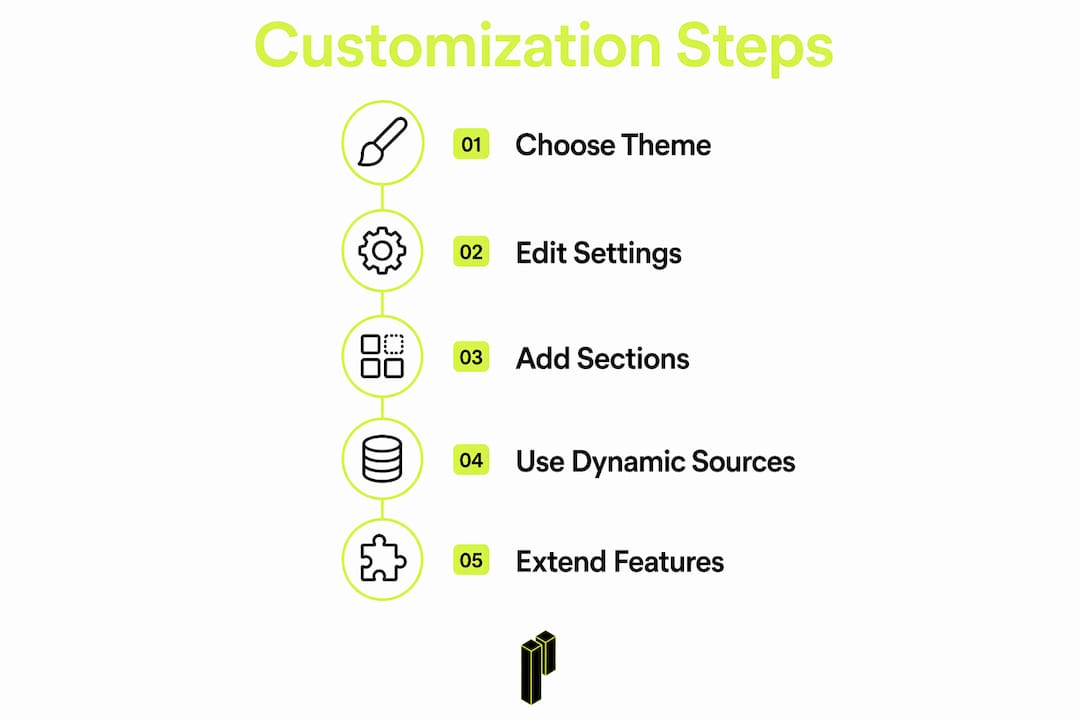
Sections are the horizontal content bands that make up each page. In the theme editor sidebar, click Add section to insert new content blocks like image banners, testimonials, featured collections, or custom HTML. Drag sections up or down to reorder them. Each section contains blocks, which are the individual content elements inside it, such as a heading, text paragraph, or button within a hero banner.
Pro Tip: Use the mobile preview toggle at the bottom of the editor to check every layout change on a phone-sized screen before saving. Mobile traffic typically accounts for the majority of e-commerce visits, so a design that looks great on desktop but breaks on mobile will cost you sales.
Using dynamic sources
Dynamic sources let you connect section content to live store data like metafields, rather than typing static text. Click the database icon next to any text field in the editor to see available dynamic sources. This is especially useful for product pages where you want custom fields like materials, sizing guides, or certifications to display automatically without manual updates.
How do templates, sections, and blocks work together?
Shopify Online Store 2.0 uses JSON templates to control which sections appear on each page type. A JSON template is a file that lists the sections assigned to a specific page, along with their settings. This is what makes it possible to have a completely different layout for your homepage versus your product pages versus a landing page.
Here is a quick comparison of the three structural layers:
| Layer | What it controls | Who edits it |
|---|---|---|
| Templates | Which sections appear per page type | Theme editor or developer |
| Sections | Modular content bands on a page | Theme editor (no code) |
| Blocks | Individual content elements inside sections | Theme editor (no code) |
You can create custom templates for specific pages directly in the theme editor. For example, you might build a “Product Template: Bundles” with a different layout than your standard product page. Navigate to the page selector at the top of the editor, click the template name, and select Create template. This gives you a dedicated layout without affecting your default pages.
Pro Tip: App blocks are a specific type of block added by Shopify apps. They let you place app-generated content, like a review widget or a size chart, directly inside a section without editing theme code. Look for them in the “Add block” menu inside any section that supports them.
App embeds work differently. They add app UI elements and scripts to your store globally, toggled from the theme editor’s App embeds panel, without inserting visible blocks into your page layout. Think of them as background-layer additions: chat widgets, cookie banners, or loyalty program scripts that need to run site-wide.
How to extend customization with apps, metafields, and code
When the theme editor’s built-in controls reach their limit, three options extend what you can do: Shopify apps, metafields, and custom code.
Shopify apps are the fastest path to new functionality. Apps like product review tools, upsell widgets, and subscription managers add new sections and blocks directly to your theme editor once installed. The advantage is that you get tested, maintained functionality without writing code. The tradeoff is that too many apps slow your store down, so audit your app stack regularly.
Metafields store custom data attached to products, collections, pages, or customers. A furniture store might use metafields to store assembly time, material type, and care instructions for each product. Once defined in Shopify Admin under Settings > Custom data, those metafields connect dynamically to theme content via dynamic sources in the editor. The result is that content updates automatically across every product that shares the same metafield, rather than requiring manual edits.
Custom code is the deepest layer. Liquid, HTML, CSS, and JavaScript give developers full control over theme structure and behavior. Liquid is Shopify’s templating language; it pulls dynamic store data into theme files. For non-developers, the practical rule is this: if you cannot describe exactly what you want a developer to build, do not touch the code files yourself.
- Always duplicate your theme before editing any code files
- Use Shopify CLI to work locally and push changes safely
- Test on a development store before pushing to production
- Keep a changelog of every code modification so future developers understand what changed and why
Knowing when to hire a developer is itself a skill. If a customization requires editing Liquid files, modifying
settings_schema.json, or building a new section from scratch, the time cost of learning outweighs the money cost of hiring. Platter’s team at platter.com/build handles exactly this kind of work for Shopify brands that need more than the editor can offer.
What are the best practices for Shopify theme customization?
The most common mistake store owners make is skipping the theme selection step and trying to customize a mismatched theme into something it was never designed to be. Your Shopify theme selection checklist should include: does the theme support the page types you need, does it have the section types your content requires, and does its default style align with your brand direction? Fixing a bad theme choice through customization costs far more time than choosing the right theme upfront.
Follow this sequence for any significant customization project:
- Duplicate your theme before making any changes. This creates a backup you can restore in one click if something breaks.
- Start with global theme settings before touching individual sections. Color and typography changes here cascade correctly across the whole store.
- Edit sections and templates for layout changes. Use the theme editor before considering any code.
- Test on mobile and desktop after every meaningful change. Use Shopify’s built-in preview modes and test on a real device when possible.
- Audit performance after adding apps or custom code. Use Google PageSpeed Insights or Shopify’s built-in speed report to catch regressions.
Duplicating your theme before customization is the single most overlooked safeguard in Shopify store management. It takes ten seconds and has saved countless store owners from hours of recovery work.
Pro Tip: Shopify supports market-specific theme customizations through an inheritance system. You can set a default design baseline and then override specific sections or settings for individual markets. If you sell internationally, this feature lets you localize visuals without maintaining entirely separate themes.
Keep your customizations as lean as possible. Every app block, custom section, and code snippet adds maintenance overhead. When Shopify releases a major update or you want to switch themes, a heavily modified store is harder to migrate than a clean one. Build what your customers need, not everything that is technically possible.
Key takeaways
Shopify theme customization works best when you master the theme editor first, understand the template and section architecture, and extend with apps or code only when the built-in tools genuinely cannot deliver what your store needs.
| Point | Details |
|---|---|
| Start with the theme editor | Access via Shopify Admin > Online Store > Themes > Customize for all no-code changes. |
| Understand the three layers | Templates, sections, and blocks control every page layout in Online Store 2.0. |
| Use metafields for dynamic content | Connect custom product data to theme content so it updates automatically store-wide. |
| Duplicate before every major edit | A theme backup takes seconds and prevents hours of recovery work if something breaks. |
| Match theme selection to your goals | Choosing the right base theme upfront saves more time than any customization shortcut. |
Why most store owners underuse their theme editor
Most Shopify store owners I work with have barely scratched the surface of what their theme editor can do. They change their logo and their brand color, then immediately start searching for apps to solve layout problems the editor already handles natively. The modular architecture of Online Store 2.0 is genuinely powerful, and merchants who understand it maintain their stores with far less friction than those who treat the editor as a simple style panel.
The advice I give every store owner is to spend two hours just exploring the theme editor before touching anything else. Click every section. Open every block. Read every setting label. You will find controls you did not know existed, and you will stop reaching for apps to solve problems the editor already solves for free.
The other thing I see consistently is merchants attempting a full redesign in one session. That approach almost always produces a store that looks inconsistent and performs worse than the original. Incremental changes, tested after each one, produce better results every time. Change your typography. Check it on mobile. Live with it for a week. Then move to the next element. This is how stores that convert well are actually built.
The brands that get the most out of Shopify’s theme system are not the ones with the most custom code. They are the ones who understand what the platform does natively and build on top of that foundation deliberately.
— Cam
How Platter helps you get more from your Shopify theme
Platter is a Shopify Platinum Partner with a proprietary framework behind 200+ stores and over $1B in GMV. When your theme customization needs go beyond what the editor can handle, Platter’s team builds the features, sections, and integrations your store actually needs, without the overhead of a full custom theme build. If you want to know exactly where your current theme setup is leaving money on the table, request a free audit and get a clear picture of what to fix first. Or if you are ready to talk through a specific project, book a call with the team directly.
FAQ
What is the Shopify theme editor?
The Shopify theme editor is a visual customization tool accessed via Shopify Admin > Online Store > Themes > Customize. It lets store owners change colors, fonts, layouts, sections, and blocks without writing code.
How do I edit my Shopify theme without coding?
Use the theme editor to modify global settings like colors and typography, then add, remove, or rearrange sections and blocks on any page. Most design changes for non-developers are fully achievable through this interface alone.
What are Shopify theme sections and blocks?
Sections are modular horizontal content bands that make up a page layout, and blocks are the individual content elements nested inside each section. Both are editable directly in the theme editor under Online Store 2.0.
When should I use a Shopify app vs. custom code?
Use a Shopify app when you need tested, maintained functionality like reviews or subscriptions added quickly. Use custom code only when an app cannot deliver what you need and you have developer support to implement and maintain it safely.
How do I back up my Shopify theme before making changes?
In Shopify Admin, go to Online Store > Themes, click the three-dot menu next to your active theme, and select Duplicate. This creates a full copy you can restore at any time if a customization causes problems.




.svg)












.svg)


.svg)







%201.png)



.svg)
.svg)



