


.svg)

Table of Contents
Key Takeaways
| Point | Details |
|---|---|
| Conversion tracking defined | It measures specific customer actions after ad interactions to connect marketing spend to real sales outcomes. |
| Shopify’s native tools have limits | Cookie blocking and private browsing can leave your conversion summary empty, even when campaigns are working. |
| Google & YouTube app is the right setup path | Installing this app is Shopify’s recommended method for connecting Google Ads conversion tracking reliably. |
| Conversion APIs fill the gaps | Server-side tracking sends data directly to ad platforms, bypassing browser restrictions for more accurate attribution. |
| Data interpretation drives results | Knowing how to read session-based metrics and cost-per-conversion figures is what turns tracking into actual optimization. |
How Shopify conversion tracking works
At its core, conversion tracking measures actions people take on your site after clicking an ad or free listing, then connects those actions back to the marketing source that drove them. A conversion is not always a purchase. It can be a form submission, a newsletter signup, a button click, or any other action you define as meaningful to your business.
Shopify gives you a few ways to see this data natively. The most useful starting point is the Conversion Summary on individual orders. This report shows total visits before purchase, days between the first visit and the order, and a timeline of how the customer moved through your store. It is a clean way to understand the path a buyer took. The Conversion Summary is most complete on stores using Shopify Payments. Third-party gateways can break the tracking chain.
Here is what counts as a conversion in most Shopify tracking setups:
-
Completed purchases (the most common and highest-value conversion)
-
Add to cart events (signals purchase intent even without a completed order)
-
Checkout initiations (shows where drop-off happens in your funnel)
-
Form completions (email signups, contact forms, lead captures)
-
Button clicks (for stores tracking micro-conversions like wishlist adds)
One thing that trips up a lot of store owners is how Shopify calculates conversion rate. Sessions end after 30 minutes of inactivity or at midnight UTC, so your conversion rate is session-based rather than visitor-based. That means if someone visits your store twice in one day, those count as two sessions. Your conversion rate will look slightly lower than if it were calculated per unique visitor, which is normal and expected.
If your Shopify Conversion Summary shows no data on certain orders, the most likely cause is not a broken campaign. Empty conversion summaries are usually caused by cookie blocking, private browsing modes, or third-party app interference preventing the tracking pixel from firing.
Setting up Google Ads conversion tracking
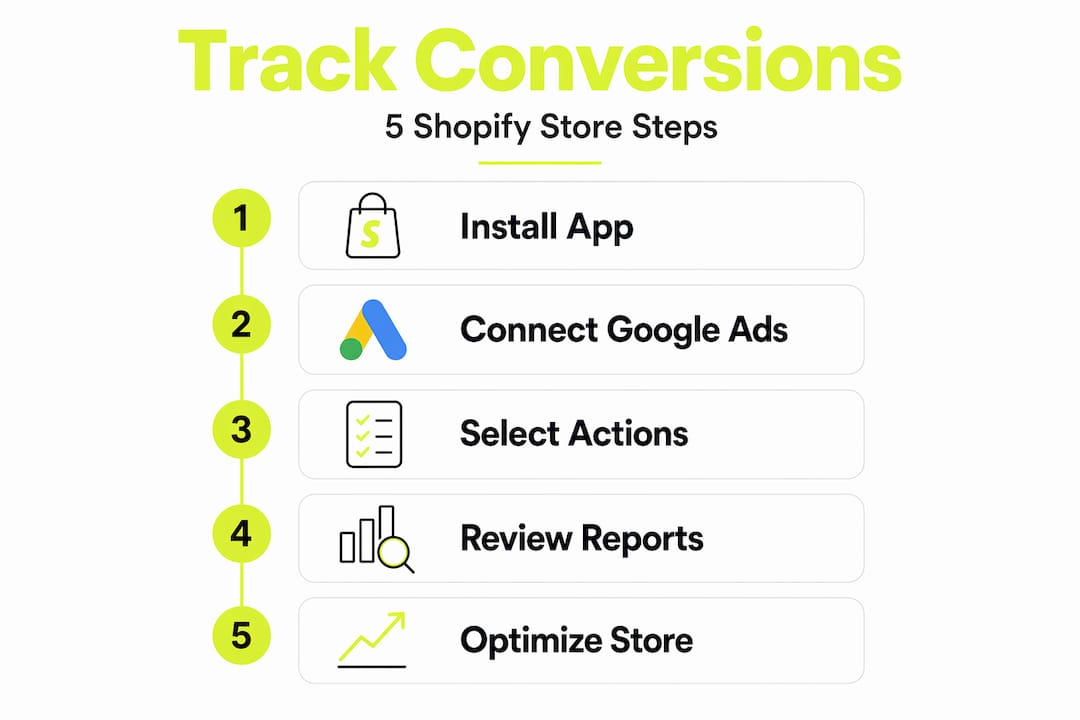
Google Ads conversion tracking is free. All you need is a website and an active Google Ads account. The cleanest way to set it up on Shopify is through the Google & YouTube app, which handles the technical configuration without requiring you to manually add tag snippets to your theme code.
Here is the step-by-step process:
-
Go to the Shopify App Store and search for the Google & YouTube app. Install it and grant the requested permissions to allow it to interact with your store data.
-
Connect your Google account by signing in through the app’s setup flow. Use the same Google account that has access to your Google Ads account.
-
Link your Google Ads account within the app. If you manage multiple accounts, select the specific one tied to the campaigns you want to track.
-
Navigate to the Conversion Tracking section inside the app settings. Toggle conversion tracking on. The app enables tracking automatically for both paid ads and free listings.
-
Verify the connection by checking that your Google Ads account shows active conversion actions. You can confirm this in Google Ads under Tools > Measurement > Conversions.
-
Test a conversion by completing a test purchase or using Google Tag Assistant to confirm the tag fires correctly on your thank-you page.
One important decision in this process is choosing which actions count as primary conversions versus secondary ones. Choosing which actions count as conversions is strategic because only primary conversions influence Smart Bidding and campaign optimization. If you mark every micro-event as a primary conversion, you dilute the signal Google uses to optimize your ad spend.
You also have the option to opt out of conversion tracking through the app settings. Be aware that deactivating conversion tracking significantly reduces campaign performance because Google loses the data it needs to optimize bids. It also affects your YouTube and Google Analytics integrations. If you need to pause tracking for any reason, plan for a performance dip while the system recalibrates.
If you previously used a manually installed Google tag on your Shopify store, migrating to the Google & YouTube app is not optional. Shopify’s checkout page updates frequently break legacy tags, and the app-based approach is the only way to guarantee your tracking stays intact through those changes.
Advanced tracking with the Conversion API
Browser-based tracking has a real problem. Ad blockers, iOS privacy updates, and private browsing modes all interfere with the cookies and pixels that client-side tracking depends on. The result is a gap between what your ads actually drove and what your analytics reports show.

The Conversion API solves this by moving tracking off the browser entirely. Instead of relying on a pixel firing in the user’s browser, the Conversion API uses server-to-server connections to send marketing data directly to ad platforms like Meta or Google. Your server sends the event data, not the user’s browser, so privacy restrictions and ad blockers cannot interfere.
Here is what server-side tracking can capture that browser tracking often misses:
-
Purchase completions that happen after a user has cleared cookies or switched devices
-
Product view events from users browsing in private or incognito mode
-
Anonymized identifiers that match users across sessions without violating privacy regulations
-
Checkout events that fire even when a browser extension blocks the standard pixel
The practical benefit is more accurate attribution. When you can see the full picture of which campaigns drove real purchases, your cost-per-acquisition numbers become trustworthy. That makes budget decisions much easier.
Conversion APIs reduce the uncertainty of browser-based tracking and enable more accurate ad spend optimization. The combination of browser tracking and server-side tracking gives you redundancy. When one method fails, the other picks up the signal.
There is one critical pitfall to avoid. Duplicate conversion events occur when both your browser pixel and your Conversion API fire for the same action without deduplication logic in place. This inflates your reported conversions and makes your data unreliable. When you implement server-side tracking, you must configure event matching and deduplication to make sure each conversion is counted exactly once.
How to interpret and act on your conversion data
Tracking data is only useful if you know what to do with it. Here is a comparison of the key reports available to Shopify store owners and what each one tells you:
| Report | Where to find it | What it tells you |
|---|---|---|
| Conversion Summary | Shopify Admin > Orders > Individual order | Customer path, visits before purchase, days to convert |
| Overview Dashboard | Shopify Admin > Analytics > Overview | Store-wide conversion rate, sessions, and revenue trends |
| Behavior Reports | Shopify Admin > Analytics > Reports | Where visitors drop off in your funnel |
| Google Ads Conversions | Google Ads > Campaigns > Columns | Conversion rate, cost per conversion, total conversions by campaign |
| Conversion Rate Report | Shopify Admin > Analytics > Reports | Session-based conversion rate over time |
Understanding the difference between sessions and visitors matters here. Because Shopify’s conversion rate is session-based, a single visitor who browses your store three times in a day contributes three sessions. Your conversion rate reflects conversions per session, not per unique person. This is why your Shopify rate may look different from what Google Analytics reports. What is available in these reports also depends on your Shopify plan. Plus accounts get attribution columns and marketing reports that Basic does not.
When you look at Google Ads reporting, the columns that matter most are conversion rate, cost per conversion, and total conversions by campaign. Conversion tracking data lets you adjust keywords, bids, and ad creatives based on what is actually driving purchases, not just clicks. A campaign with a high click-through rate but a low conversion rate is telling you something is wrong between the ad promise and the landing page experience.
Practical steps to act on your data:
-
Pause campaigns with high cost per conversion relative to your product margin. No amount of optimization fixes a fundamentally misaligned audience.
-
Identify your top-converting traffic sources and increase budget allocation there before testing new channels.
-
Use behavior reports to find funnel drop-off points. If 60% of users abandon at checkout, that is a checkout experience problem, not a traffic problem. Reviewing your checkout optimization approach is the right next step.
-
Check for data gaps. If your conversion summary is blank on a significant percentage of orders, you likely have a cookie-blocking issue that a Conversion API implementation would fix.
Why your numbers never match across platforms
This is the question every DTC operator asks, and most tracking guides skip it. Open Shopify and your conversion rate looks one way. Open GA4 and it looks another. Open Meta Ads Manager and it tells a third story. They are all measuring the same store, so why do the numbers not match?
Each platform counts conversions on its own rules:
-
Shopify attributes the order to the last source the customer touched before purchase, and only counts what happens on your storefront.
-
GA4 uses data-driven attribution by default, distributing credit across multiple touchpoints in the path.
-
Meta Ads Manager uses a 7-day click and 1-day view attribution window, claiming credit for any user who saw or clicked an ad and then converted within that window, even if they came back through Google later.
-
Google Ads similarly claims credit for clicks within its own attribution window, separately from what GA4 reports.
Every platform overclaims. If you add up the conversions Meta, Google, and TikTok each report driving, the total usually exceeds your actual order count by 30 to 50 percent. This is expected, not a bug. The question is which numbers to trust for which decision.
For ad spend allocation, Shopify’s last-click data is the most conservative. For platform-specific optimization (Smart Bidding, Advantage+ campaigns), each ad platform needs its own conversion signal. Use the right number for the right decision, and stop trying to make them match.
My honest take on conversion tracking
I have worked with enough Shopify stores to know that most tracking problems are not technical failures. They are interpretation failures. Store owners see a low conversion rate and immediately blame their ads or their product. What I have found is that the data is usually telling a different story, and most people are not reading it carefully enough.
The biggest mistake I see is treating conversion tracking as a one-time setup. You install the Google & YouTube app, confirm the tag fires, and move on. But tracking breaks. Shopify updates its checkout pages. Privacy regulations tighten. Ad platforms change their attribution windows. The store owners who get the most out of their data are the ones who treat tracking as something they check and maintain regularly, not something they configure once and forget.
I have also seen stores running both a legacy Google tag and the Google & YouTube app simultaneously, which creates duplicate conversion counts. Their reported ROAS looks great. Their actual revenue does not match. Migrating fully to the app-based approach and auditing for duplication is one of the highest-leverage things a store can do before scaling ad spend.
My honest recommendation: if your store is doing meaningful ad spend and you have not implemented a Conversion API alongside your browser tracking, you are making budget decisions on incomplete data. The technical lift is real, but the accuracy improvement is worth it.
How Platter helps you track and convert better
Knowing how Shopify conversion tracking works is one thing. Having it configured correctly across your entire store is another.
Platter is a Shopify Platinum Partner with a proprietary framework behind 200+ stores and over $1B in GMV. We have seen every tracking configuration mistake in the book, and we know exactly where stores lose revenue due to broken or incomplete measurement. Our free feature audit identifies gaps in your current tracking setup, from missing Conversion API implementation to legacy tags that stopped working after a checkout update. If you want a hands-on look at what Platter builds, you can also book a demo to see how our approach to storefront optimization translates into real conversion rate improvements. Better data leads to better decisions. Better decisions lead to more revenue.
FAQ
What is Shopify conversion tracking?
Shopify conversion tracking measures specific customer actions on your store after ad interactions, connecting those actions to the marketing sources that drove them. It covers purchases, form signups, button clicks, and other events you define as valuable.
How do I track conversions on Shopify with Google Ads?
Install the Google & YouTube app from the Shopify App Store, connect your Google Ads account, and enable conversion tracking in the app settings. This is Shopify’s recommended method and handles tag management automatically.
Why is my Shopify conversion summary empty?
An empty conversion summary is most often caused by cookie blocking, private browsing, or third-party app interference rather than a campaign error. Implementing a Conversion API can help capture these otherwise lost events.
What is a Conversion API and do I need one?
A Conversion API sends tracking data from your server directly to ad platforms, bypassing browser restrictions and ad blockers. If you run significant ad spend, it provides more reliable attribution than browser-based tracking alone.
How does Shopify calculate conversion rate?
Shopify calculates conversion rate based on sessions, not unique visitors. A session ends after 30 minutes of inactivity or at midnight UTC, so your rate reflects conversions per session and will typically read slightly lower than a visitor-based rate.





.svg)












.svg)


.svg)







%201.png)



.svg)
.svg)



